How to Make Passport-Style Photos with Gemini (20 Prompts for ID-Style Portraits)
Getting a clean, passport-style photo can be surprisingly difficult. You want a plain background, balanced lighting, a straight-on view, and a natural expression without the distractions that often appear in ordinary selfies. Fortunately, Gemini can help transform a suitable selfie into a simple, ID-style portrait with a more polished and consistent appearance.
The key is to give Gemini clear instructions about framing, facial positioning, background, lighting, and realism. Instead of asking for a beautiful portrait or a professional headshot, you want an image that looks like a straightforward identification photo. Small details, such as keeping your head centred and maintaining a neutral expression, can make a noticeable difference.
In this guide, you’ll find 20 copy-and-paste Gemini prompts for passport-style photos, along with practical tips for editing your selfie, adjusting the results, and creating a printable sheet with multiple ID-style photos on one page. Remember that AI-generated images are not automatically accepted for official documents. Always check the issuing authority’s photo requirements before using an AI-edited or generated image for a real passport, visa, or ID application.
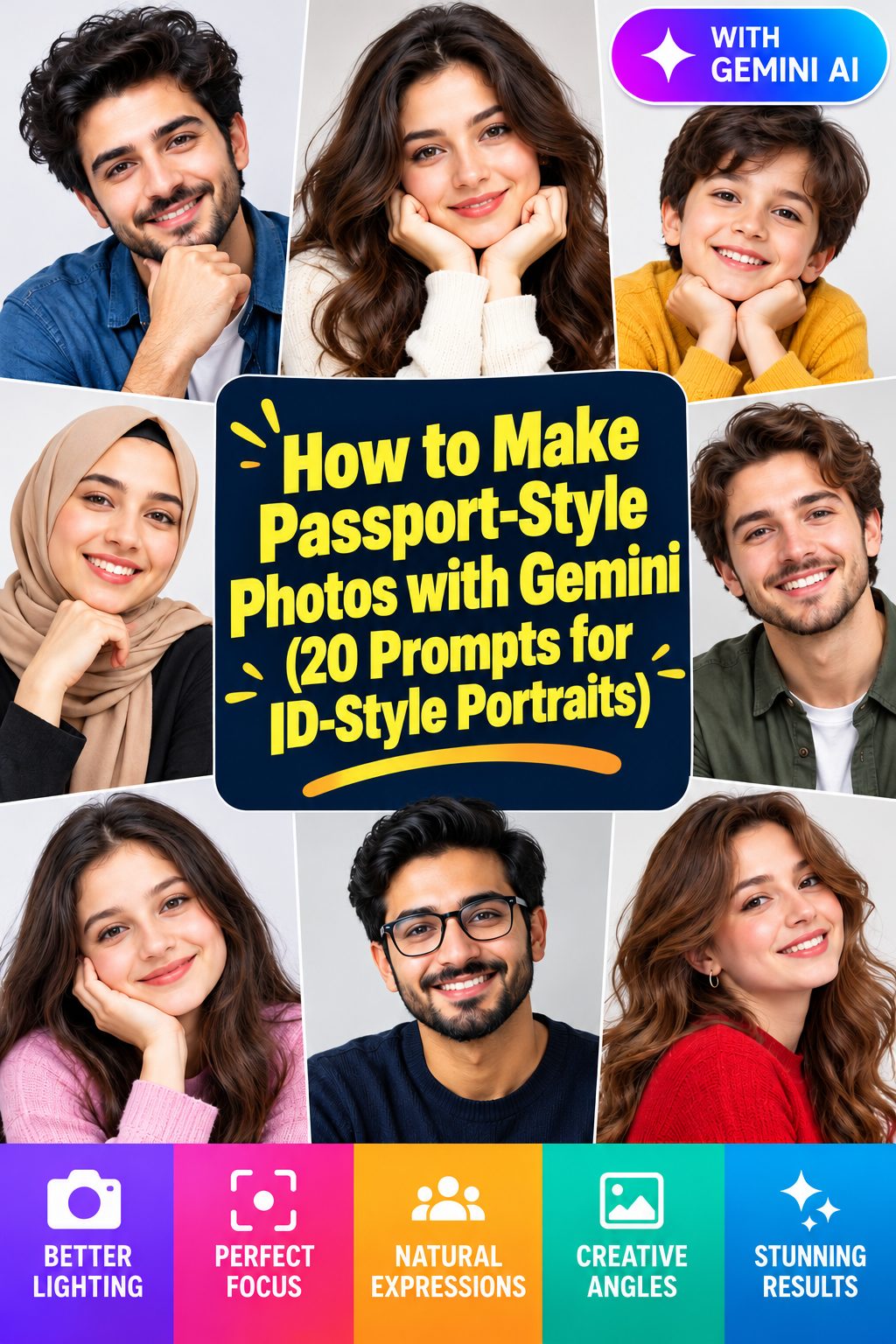
What Is a Passport-Style Photo?
A passport-style photo is a straightforward identification portrait designed to show your face clearly. Unlike a professional headshot, which may use creative lighting, different angles, stylish clothing, or an attractive background, an ID-style portrait follows a more standardized visual approach.
Most passport-style photos share several characteristics:
- Plain background: A simple white, off-white, or light-coloured background without visible objects, patterns, or distractions.
- Centred framing: Your face should be positioned in the middle of the image, with your head facing directly toward the camera.
- Neutral expression: A relaxed face with open eyes and a natural, closed-mouth expression.
- Even lighting: Soft, balanced illumination that avoids harsh shadows across the face or background.
- Natural appearance: Realistic skin texture, accurate facial features, and minimal retouching.
- Consistent proportions: Your head and shoulders should fit comfortably within the frame without awkward cropping.
Gemini can help create this visual style from a selfie or reference photograph. However, an image that looks like a passport photo is not necessarily compliant with official document requirements. Different countries and issuing authorities have specific rules about image dimensions, head size, background colour, facial expression, editing, and digital image submission.
For that reason, think of these prompts as tools for creating ID-style portraits and practicing the correct framing. Before submitting an AI-edited image for an official document, verify that the relevant authority permits the type of editing used.
What Should You Include in a Passport-Style Photo Prompt?
A good Gemini prompt should describe exactly how the identification portrait needs to look. General instructions such as “make this a passport photo” may leave too much room for interpretation. More specific details help Gemini understand the desired composition.
Use this checklist when preparing your prompt:
- Reference selfie: Upload a clear, front-facing photograph with your face visible and unobstructed.
- Identity preservation: Ask Gemini to preserve your actual facial features, face shape, skin tone, and recognizable appearance.
- Background: Specify a plain white, light grey, or other appropriate solid background.
- Camera angle: Request a straight-on camera angle with the head upright and eyes looking directly at the camera.
- Expression: Describe a neutral, relaxed expression with a closed mouth and naturally open eyes.
- Lighting: Request soft, even lighting with realistic skin tones and minimal shadows.
- Framing: Specify centred head-and-shoulders composition with comfortable space around the head.
- Clothing: Choose simple, neat clothing that contrasts with the background.
- Realism: Avoid beauty filters, excessive skin smoothing, artificial facial enhancements, and exaggerated sharpening.
- Output format: Mention portrait orientation, clean image quality, or a printable sheet when appropriate.
One important tip: start with a photograph that already shows your face clearly. Gemini may be able to adjust the background and composition, but asking it to correct a heavily tilted, blurry, or obstructed selfie can introduce unwanted changes to your appearance.
20 Gemini Prompts for Passport-Style Photos
These 20 prompts cover different ID-style photo situations, from simple white-background portraits to clothing adjustments and printable layouts. Upload your selfie to Gemini, choose a prompt, and paste the instructions into the chat. Replace any clothing, background, or formatting details to suit your needs.
1. Classic White Background Passport-Style Photo
Prompt:
Use my uploaded selfie as the reference and create a realistic passport-style identification portrait. Preserve my exact facial identity, face shape, skin tone, and natural features. Place me against a completely plain white background, facing directly toward the camera with a neutral, closed-mouth expression. Use soft, even studio lighting, realistic skin texture, sharp facial details, and centred head-and-shoulders framing. Avoid filters, shadows, and decorative elements.
2. Clean Light Grey ID-Style Portrait
Prompt:
Transform my uploaded selfie into a clean ID-style portrait with a smooth, solid light grey background. Keep my facial features and natural appearance unchanged. Position my head upright and centred, with both eyes looking directly into the camera and a relaxed neutral expression. Use balanced, soft frontal lighting, natural skin texture, realistic colours, and clear photographic detail. Do not add beauty effects, dramatic shadows, or background objects.
3. Straight-On Camera Passport Photo
Prompt:
Create a realistic identification-style photograph from my uploaded selfie. Adjust the composition so my face is directly facing the camera, with no noticeable head tilt or side angle. Preserve my identity and natural proportions. Use a plain white background, neutral expression, open eyes, and relaxed closed lips. Apply soft, evenly distributed lighting with realistic skin texture and natural photographic detail. Keep the framing symmetrical and uncluttered.
4. Natural Expression Passport-Style Portrait
Prompt:
Turn my uploaded selfie into a natural-looking passport-style portrait. Preserve my recognizable face, including my natural skin tone, facial structure, eyes, and hairstyle. Give me a calm, neutral expression with relaxed facial muscles and a gently closed mouth. Use a plain off-white background, straight-on framing, and soft daylight-balanced lighting. Keep realistic pores and subtle skin details without smoothing, artificial retouching, or exaggerated facial adjustments.
5. Professional-Looking ID Photo with Simple Clothing
Prompt:
Create a simple, realistic ID-style portrait using my uploaded selfie. Keep my face and identity unchanged while showing me wearing a neat, plain dark shirt with no visible logos or patterns. Use a solid white background and centred, straight-on head-and-shoulders composition. Maintain a neutral expression and direct eye contact. Add soft, balanced studio lighting, accurate skin tones, and natural photographic sharpness without making the image look overly polished.
6. Passport-Style Photo with a Soft Blue Background
Prompt:
Use my selfie to create a clean identification-style portrait with a completely plain, pale blue background. Preserve my real facial identity, hairstyle, skin tone, and natural proportions. Keep my head upright, shoulders level, and eyes looking straight into the camera. Use a neutral expression and soft, even lighting without visible shadows. Maintain realistic skin texture, accurate colours, and straightforward ID-photo framing without decorative effects.
7. Bright and Evenly Lit ID Portrait
Prompt:
Convert my uploaded selfie into a realistic passport-style identification portrait with bright, balanced lighting. Keep my actual facial features unchanged and avoid altering my face shape or expression. Place me against a clean white background with centred head-and-shoulders framing. Use soft frontal illumination to reveal facial details without washing out skin tones. Maintain natural texture, clear eyes, realistic colour balance, and a neutral closed-mouth expression.
8. Minimalist Passport-Style Photo with Dark Clothing
Prompt:
Create a minimalist ID-style portrait from my uploaded selfie. Preserve my exact identity and natural facial characteristics. Show me wearing a simple, solid dark-coloured top against a plain white background. Keep my head straight, face centred, eyes directed toward the camera, and expression neutral. Use gentle studio lighting, realistic skin texture, accurate colour reproduction, and crisp photographic detail. Do not add accessories, patterns, filters, or unnecessary retouching.
9. Passport-Style Photo with Natural Daylight
Prompt:
Create a realistic passport-style portrait using my uploaded selfie as the identity reference. Place me in front of a plain, bright neutral background with no visible texture or objects. Simulate soft natural daylight falling evenly across my face. Keep my head upright, eyes forward, and expression relaxed and neutral. Preserve realistic skin details, natural facial proportions, and my original appearance. Avoid harsh highlights, dramatic shadows, and artificial beauty filters.
10. Close-Cropped ID-Style Headshot
Prompt:
Transform my selfie into a close-cropped identification portrait while preserving my natural facial identity. Position my face centrally, showing my full head and an appropriate portion of my shoulders without cutting off the top of my hair or chin. Use a plain white background, straight-on camera perspective, and neutral expression. Apply soft, even lighting and realistic photographic detail, keeping skin texture natural and avoiding excessive sharpening or smoothing.
11. Passport-Style Photo with Neat Hair
Prompt:
Create a clean ID-style photograph from my uploaded selfie, keeping my facial identity and natural appearance intact. Make my existing hairstyle look neatly arranged without changing its length, colour, or overall character. Use a plain light grey background, centred straight-on framing, and a neutral expression. Keep my eyes clearly visible and facial proportions realistic. Use soft, balanced lighting with natural skin texture and no artificial beauty enhancements.
12. Simple ID Portrait with a White Shirt
Prompt:
Use my uploaded selfie to produce a realistic identification-style portrait of me wearing a simple, clean white shirt. Preserve my actual face, skin tone, hairstyle, and recognizable features. Position me against a plain light grey background so the clothing remains distinguishable. Keep my head upright, expression neutral, and gaze directed toward the camera. Use soft frontal lighting, accurate colours, natural skin texture, and balanced head-and-shoulders framing.
13. Realistic Passport-Style Photo Without Retouching
Prompt:
Create a natural, unretouched passport-style portrait from my uploaded selfie. Preserve my real facial structure, skin texture, natural lines, complexion, and distinctive features. Do not beautify, slim, reshape, or digitally enhance my face. Use a plain white background, straight-on camera angle, centred framing, and neutral closed-mouth expression. Apply soft, even lighting with realistic colour balance and authentic photographic detail, as if captured by a conventional camera.
14. Balanced Head-and-Shoulders ID Portrait
Prompt:
Turn my uploaded selfie into a balanced identification-style photograph. Preserve my face and natural appearance while adjusting the composition to show my full head, neck, and upper shoulders. Position me centrally against a plain off-white background, with my head upright and eyes looking straight ahead. Use a neutral expression and soft, even studio illumination. Maintain realistic skin texture, accurate proportions, clear details, and a simple uncluttered appearance.
15. Passport-Style Portrait with a Warm Neutral Background
Prompt:
Create a realistic ID-style portrait from my uploaded selfie using a plain, very light warm-grey background. Preserve my actual identity, facial proportions, hairstyle, and natural skin tone. Keep my face centred and directly facing the camera with a relaxed neutral expression. Use soft, neutral lighting that maintains accurate colours without yellow colour casts. Include natural skin texture, clear eyes, and clean head-and-shoulders framing without decorative elements.
16. High-Resolution Digital ID-Style Photo
Prompt:
Create a high-quality digital identification portrait based on my uploaded selfie. Preserve my real face and recognizable features without reshaping or beautifying anything. Use a plain white background, centred straight-on composition, upright head position, and neutral expression. Ensure the eyes and facial details are clearly visible with natural skin texture. Use soft, even lighting, realistic colour reproduction, and clean photographic sharpness without artificial HDR effects or excessive processing.
17. Passport-Style Photo with a Plain Dark Top
Prompt:
Transform my uploaded selfie into a straightforward passport-style portrait. Keep my facial identity, hairstyle, skin tone, and natural proportions unchanged. Show me wearing a simple plain dark top against a clean light neutral background. Use a direct camera angle, upright head position, centred face, and neutral closed-mouth expression. Apply soft frontal lighting, realistic skin texture, and natural colours, avoiding dramatic contrast, shadows, accessories, or fashion photography effects.
18. Consistent ID Photo for Multiple Applications
Prompt:
Use my uploaded selfie to create a clean, consistent identification-style portrait suitable as a general ID-photo reference. Preserve my real facial identity and avoid changing distinctive features. Use a plain white background, neutral expression, direct eye contact, and symmetrical head-and-shoulders framing. Keep lighting soft and even, with accurate skin tones and realistic detail. Make the composition simple and balanced, without decorative elements, beauty filters, or unnecessary editing.
19. Printable Sheet with Multiple ID-Style Photos
Prompt:
Create a printable sheet using my uploaded selfie as the identity reference. Arrange multiple identical ID-style portraits in a neat grid on one white page. Preserve my face, neutral expression, and centred framing in every copy. Use consistent spacing, clear margins, realistic photographic detail, and even lighting. Keep each portrait undistorted and easy to cut out.
20. Final Refined Passport-Style Portrait
Prompt:
Refine my uploaded selfie into a simple, realistic passport-style identification portrait. Preserve my exact facial identity, natural skin texture, hairstyle, and proportions. Use a completely plain white background, straight-on camera angle, upright head, centred composition, and relaxed neutral expression. Apply soft, evenly balanced lighting with accurate skin tones and clear facial details. Avoid retouching, face reshaping, filters, shadows, accessories, and artistic effects. Keep the result looking like an ordinary photograph.
How to Customize These Prompts
The prompts above provide a useful starting point, but you can adjust them to match your preferred appearance and the type of ID-style portrait you need. The most important thing is to make small, specific changes while keeping your facial identity consistent.
1. Start with a Clear Selfie
Choose a photograph where your face is clearly visible. A straight-on selfie with good lighting, an unobstructed face, and a neutral expression gives Gemini a stronger reference. Avoid photographs with sunglasses, heavy shadows, strong beauty filters, or objects covering your face.
2. Choose the Right Background
For a simple identification-style result, use a solid white or light neutral background. You can also experiment with light grey or pale blue when creating a general ID-style portrait. However, do not assume that every background colour is permitted for an official passport or visa photo. Check the exact requirements of the issuing authority.
3. Specify the Desired Framing
Tell Gemini whether you want a close-cropped portrait or a head-and-shoulders composition. You can use instructions such as:
- Keep the entire head visible, including the top of the hair and chin.
- Centre the face horizontally and vertically.
- Keep the head upright without a noticeable tilt.
- Show both shoulders naturally.
- Maintain a straight-on camera perspective.
If you need an official document photo, remember that the authority may specify exact head-height and face-position measurements. A visually centred image does not automatically meet those technical requirements.
4. Adjust Clothing Carefully
Simple clothing generally works best for an ID-style portrait. A plain shirt or top without prominent logos, busy patterns, or distracting accessories keeps attention on the face. Choose a colour that contrasts with the background so your shoulders remain visible.
If you want Gemini to change your clothing, be specific. For example, ask for a plain navy shirt or a simple dark top. Check the result carefully to ensure that the clothing looks natural and does not introduce strange edges around the neck or shoulders.
5. Ask Gemini to Preserve Your Identity
One of the most important customization instructions is to preserve your actual appearance. Include phrases such as “keep my original facial structure,” “preserve my natural skin texture,” and “do not reshape my face.”
After generating the image, compare it with your original selfie. Pay attention to your eyes, nose, jawline, hairstyle, skin tone, and other recognizable features. If Gemini changes any of these details, ask it to correct the specific issue rather than regenerating the entire image with vague instructions.
6. Prepare a Printable Sheet
If you want several ID-style photographs on one page, use Prompt 19 as your starting point. You can ask Gemini to arrange identical portraits in a grid with consistent spacing and clean margins.
However, AI-generated sheet layouts may not have precise physical dimensions. For reliable printing, use a dedicated image editor or document layout application to set the exact photo dimensions, page size, spacing, and print resolution required. Check the final measurements with a ruler or print-preview settings before printing.
Tips for More Realistic Passport-Style Photos
A convincing ID-style portrait should look like a straightforward photograph rather than an AI-generated beauty image. These practical tips can help you get more natural results from Gemini.
- Use a front-facing reference: A selfie taken at eye level makes it easier to maintain a straight-on composition.
- Avoid extreme angles: Side profiles, low camera positions, and tilted selfies can make the final result look unnatural.
- Keep lighting simple: Soft daylight or balanced studio-style lighting helps produce realistic skin tones.
- Request natural skin texture: Ask Gemini to retain pores, fine details, and normal skin characteristics instead of applying a smoothing filter.
- Choose a genuinely plain background: Avoid gradients, textures, furniture, decorative objects, and artificial shadows.
- Maintain a neutral expression: A relaxed face with direct eye contact generally creates the familiar ID-photo appearance.
- Check facial proportions: Make sure Gemini has not changed the size or position of your eyes, nose, mouth, or jawline.
- Inspect the hairline: AI editing can sometimes create unnatural edges around hair, ears, and shoulders.
- Avoid unnecessary accessories: Do not introduce glasses, jewelry, hats, or other items that were not in the original image unless they are appropriate for your intended use.
- Check the final crop: Make sure the top of the head, chin, and relevant shoulder area are not accidentally cut off.
- Use realistic image quality: Avoid excessive sharpening, artificial HDR, dramatic contrast, or unnatural colour correction.
- Check official requirements separately: Confirm the permitted dimensions, background, expression, editing rules, and submission format before using an image for an actual document.
Important: AI-generated passport-style images are not guaranteed to be accepted by government agencies or document-issuing authorities. Some authorities require an unaltered photograph or prohibit certain forms of digital editing. Even if Gemini creates an image that looks technically correct, it may not satisfy the official rules. Always consult the relevant authority’s current photo guidelines before submitting an image for a passport, visa, or other government-issued identification document.
Final Thoughts
Gemini makes it easier to experiment with clean, simple ID-style portraits without needing a complicated photography setup. With the right selfie and a detailed prompt, you can create images featuring plain backgrounds, centred framing, natural expressions, and balanced lighting.
The 20 prompts in this guide cover everything from classic white-background portraits to realistic unretouched photos and printable multi-photo layouts. Start with a simple prompt, check how closely the result matches your original appearance, and make small adjustments until the composition looks natural.
Most importantly, remember the difference between an ID-style portrait and an officially compliant passport photograph. Gemini can help with the visual presentation, but it cannot guarantee that an image meets government document requirements. Always verify the rules of the issuing authority before using an AI-generated or edited photograph for an official application.
Keep Exploring
- 25 Best Gemini Prompts for Professional Headshots
- 25 Best Gemini Prompts for LinkedIn Profile Photos
- Natural-Looking Portraits: 20 Gemini Prompts for Candid, Realistic Photos
FAQs
1. Can Gemini turn a selfie into a passport-style photo?
Yes. You can upload a clear selfie to Gemini and ask it to create an ID-style portrait with a plain background, centred framing, a neutral expression, and even lighting. Include instructions to preserve your facial identity and natural features. However, the result may not meet the official requirements for a real passport or other government document.
2. Are Gemini-generated passport photos accepted for official documents?
Not automatically. Acceptance depends on the rules of the country and issuing authority. Some authorities require original, unaltered photographs and may reject AI-generated or digitally modified images. Always check the current official photo guidelines before using an AI-created image for a passport, visa, or identification application.
3. What background should I use for a Gemini passport-style photo?
A plain white or light neutral background is a useful starting point for a general ID-style portrait. Avoid patterns, objects, gradients, and distracting details. For an official document photo, use the exact background colour specified by the issuing authority rather than assuming that white or another colour will always be accepted.
4. How do I make a printable sheet with multiple passport-style photos in Gemini?
Upload your reference selfie and use a prompt that asks Gemini to arrange multiple identical ID-style portraits in a neat grid on one page. Specify consistent spacing, clean margins, a plain white page, and identical portrait framing. For accurate printing, verify the physical dimensions, page size, and resolution using a dedicated editing or document layout application before printing.
5. How can I stop Gemini from changing my face when making an ID-style portrait?
Use a clear reference selfie and explicitly instruct Gemini to preserve your original facial identity, face shape, skin tone, hairstyle, and natural proportions. Ask it to change only the background, lighting, and composition. Avoid vague instructions such as “make me look better,” which can encourage unnecessary facial alterations. Always compare the finished image with your original photograph to check for unwanted changes.
Leave a Reply